Mixing in key
Harmonic mixing: use the Camelot wheel, trust your ears
Harmonic mixing means considering how the musical keys of two tracks work together. It can help a bassline, vocal or melody feel at home in an overlap. The reward is a mix you enjoy listening to—not a playlist that follows every number on a chart.
Explore the Camelot wheel
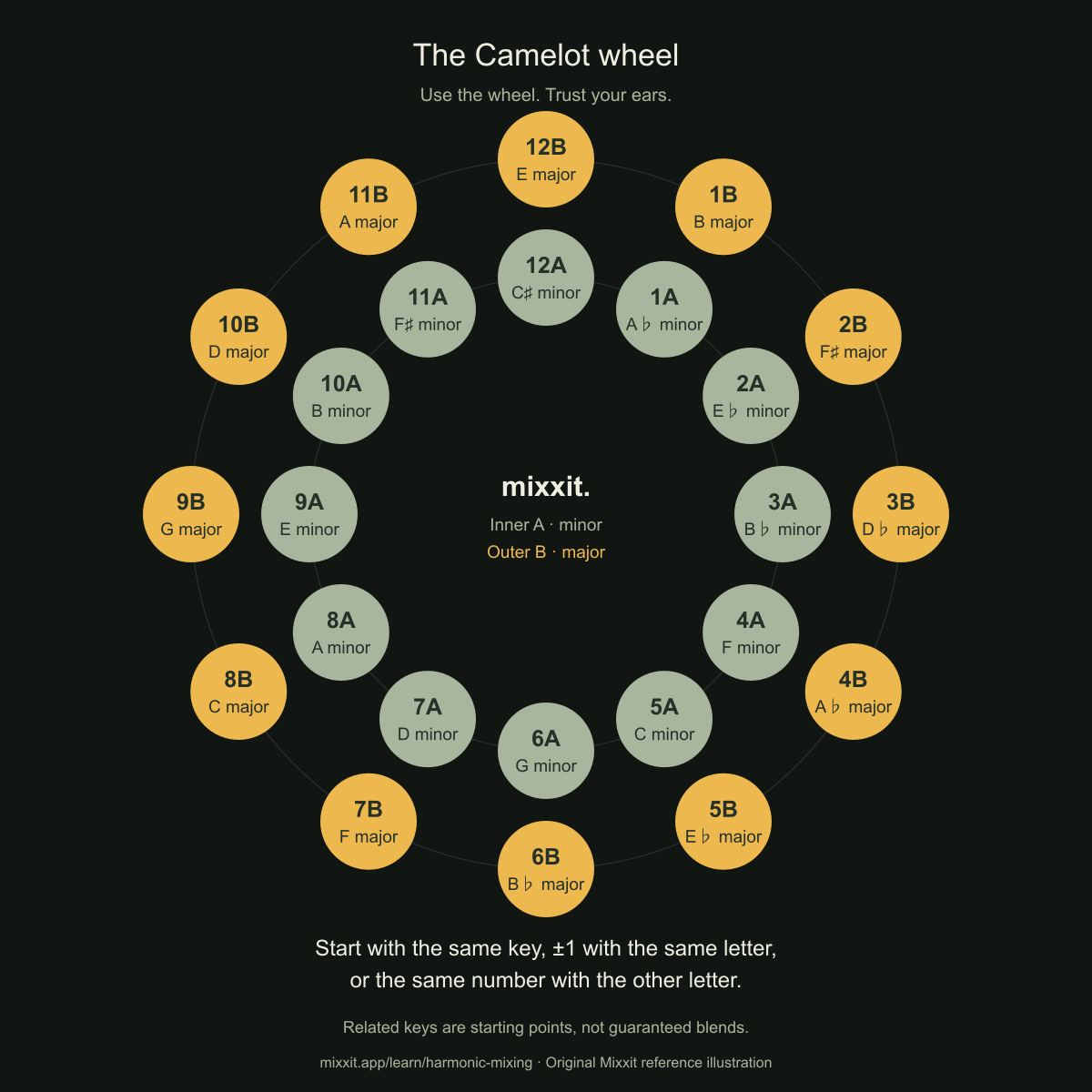
The Camelot system gives keys a number and a letter. Its circular layout makes a few common relationships easier to spot. Use the chart to shortlist possibilities from music you already love, then hear what those tracks do together.
Select a key to highlight its neighbours. Inner ring: minor (A). Outer ring: major (B).
Try the same key (8A), a neighbour (7A or 9A), or the relative major (8B).
Gold: selected key · Sage: related keys to exploreA relationship chart, not a guarantee of a good blend. No audio playback or track analysis.
Keep a Camelot wheel reference
What do 8A, 9A and 8B mean?
A denotes a minor key and B a major key. The numbers are positions on the wheel, not tempo, energy or a score for how well a track will mix. For example, 8A is A minor and 8B is C major.
Start with three simple moves: stay on the same code, move one number in either direction while keeping the letter, or keep the number and change the letter. The numbers wrap around, so 12A sits next to 1A. Changing both number and letter at once is not one of these basic moves.
From 8A, that gives you 8A, 7A, 9A and 8B as places to explore. A minor and C major are relative keys: they share a key signature, but have different tonal centres. A minor and A major are a different relationship.
These are starting relationships, not a list of the only transitions you are allowed to make. See Mixed In Key’s explanation of the Camelot wheel for the notation behind this original interactive illustration.
Try one blend, then give it some space
For this exercise, imagine an outgoing track labelled 8A and an incoming track labelled 8B. Choose recordings with similar tempos and begin at their original speeds. These are hypothetical labels, not an audio demonstration.
- Listen to each section alone. Find where the first track’s melody settles and where the second introduces its main idea. Listen beyond the intro: the useful key relationship has to work where you actually overlap the tracks.
- Try a short, simple handover. Bring the incoming percussion under the outgoing phrase. Let the new bassline arrive as the old one leaves. Our DJ phrasing guide explains how to find that moment.
- Listen to the melodic overlap. Do the sustained notes feel comfortable together? Can you still follow the vocal or lead? If two strong ideas compete, move the entry or choose a section with fewer melodic elements.
- Compare two versions. Try the same transition with less overlap. Keep the levels similar and listen from before the handover until after it. Keep the version that carries the music better.
A key match does not make two basslines share space. Once the musical handover feels right, use the transition lesson to work on volume, bass and the shape of the blend.
Why compatible keys can still sound wrong
A key label describes less than a whole song
Automatic detection is an estimate. A track can change key, leave its tonal centre ambiguous or contain passages that behave differently from the overall label. If the label and what you hear disagree, revisit the sections you are mixing before changing your track choice.
Tempo and pitch need separate attention
Changing playback speed without pitch preservation changes pitch too. A source-file key label may no longer describe what you hear after a speed adjustment. Where software offers key lock, it aims to preserve pitch while changing tempo; large adjustments can still affect the sound. Check your editor’s actual behaviour and listen again at the final playback speeds.
Native Instruments’ explanation of harmonic mixing and key lock gives further background. Features vary between editors; this guide does not assume every app has pitch-preserving tempo controls.
Arrangement matters as much as compatibility
Two vocals can talk over each other. A busy lead can hide a delicate melody. Even when the harmony is comfortable, a sudden change in energy can break the journey you wanted. Shorten the overlap, find a quieter section or try a different next track.
Let the music choose the route
Start with the feeling you want: a lift, a pause, a deeper groove or a favourite vocal arriving at just the right time. The wheel helps you investigate that idea. It does not need to choose the entire running order.
In a trance mix, pay particular attention to sustained pads and melodies. In house, listen to how the bassline and groove hand over. In techno, percussion can create room for a change, though pitched kicks and synths still deserve a listen.
Save one version, try another and come back with fresh ears. A surprising track choice that you love is worth exploring.
Try this in Mixxit
Mixxit is built around making a recorded mix on a timeline: bring your own tracks, decide where they meet and listen while you shape the handover. You choose the running order and the musical moment. Analysis is there to help you explore your collection.
- Start with two tracks you want to hear together. Use a key estimate to find a possibility, then listen to the sections you plan to blend.
- Arrange the overlap. Give the outgoing melody room to finish and choose when the incoming idea takes over.
- Refine by listening. Move the entry, adjust the volume curves and compare a shorter overlap. Save your project so you can return to another version.
Always check the blend at its final playback tempo: a source key label does not by itself confirm how a speed-adjusted track will sound. The recorded-mix walkthrough connects these decisions from first import to export.
Mixxit is coming soon for macOS and Windows; public downloads are not open yet. This wheel is a learning tool, not an automatic track-selection feature.
Common questions about mixing in key
Do I have to mix every track harmonically?
No. A brief exchange or percussion-led section may work where a long melodic blend does not. Judge the actual passage and the musical effect, rather than rejecting a track because its code is outside the highlighted group.
Does moving clockwise always increase energy?
No. A key code does not measure intensity. Rhythm, arrangement, loudness and the listener’s expectations all shape how a transition feels.
Is harmonic mixing the same as beatmatching?
No. Harmonic mixing concerns tonal relationships. Beatmatching concerns tempo and beat alignment; phrasing concerns musical sections. A convincing transition can need attention to all three.
Will this wheel analyse my tracks?
No. It illustrates key relationships only. There is no upload, analysis or playback here. Use a key estimate as a clue and check it against the music.
Make room for your next mix
Mixxit is being built around a clear timeline and hands-on transitions. It is coming soon for macOS and Windows. Explore the workflow and start thinking about the tracks you want to bring together.
Check availability →